
See the whole forecast on your locations map

LMKwhen Team
Product updates

The Locations map can now show every kind of weather data LMKwhen alerts you on — not just the warnings that are already active, but the forecasts and outlooks that feed your rules. Open the Layers panel on the map to turn them on.

Heavy rainfall and winter outlooks​

The Weather Prediction Center's Excessive Rainfall Outlook — the best advance signal for flash flooding, often flagging a Moderate or High risk a day or two before any Flash Flood Watch — now draws on the map in the official WPC colors, Days 1 through 5. Alongside it, the winter precipitation probability outlooks show the chance of plowable snow or damaging ice, out to Day 7.

Both work like the SPC outlooks you already know: pick a day, click a shaded area to see what it is.

Every forecast field you can build a rule on​

All twenty gridded forecast products are now viewable, grouped by what they are:

  • Temperature & Heat — Heat Risk, WBGT, high and low temperature, apparent temperature
  • Winter — 72-hour snowfall, ice accumulation
  • Wind — sustained wind, wind gusts
  • Precipitation — total precipitation, chance of precipitation
  • Humidity — minimum and maximum relative humidity
  • Tropical — wind, storm surge, flooding rain and tornado threat, plus tropical wind probabilities

If you have a rule watching wind gusts, you can now look at the wind gust forecast on the same screen as the properties it covers.

Each layer has a Valid control for stepping through the forecast — hour by hour for wind and WBGT, day by day for high and low temperature — and every layer carries the National Weather Service's own color scale, so what you read on the map is exactly what the forecasters published.

Hurricane tracks and cones​

Turn on any of the Tropical layers and you can overlay the National Hurricane Center forecast track and cone of uncertainty for every active system, with the advisory positions marked. The threat grids show you what the storm could do to a place; the cone shows you where the storm is expected to go.

Filter the map by collection​

The collection filter is now multi-select. Tick two collections and you see both — useful when you manage several regions and want to look at just the Gulf Coast and the Southeast together, without the rest of your portfolio on screen. It works from the list view toolbar and from the map's own Layers panel, and the filter travels in the page address, so you can bookmark a view or send it to a colleague.

Step through today's hazards​

When anything in your account is alerting, a bar appears at the bottom of the map listing each hazard behind it — a tornado warning, an enhanced severe risk, a heat exceedance — one stop per weather layer.

Step through them with the arrows, or press play and the map walks itself through them, 30 seconds each with a countdown to the next. Each stop shows that hazard on its own and moves the map to fit the properties it is affecting, so you see both the weather and whose site is under it.

The map never switches layers on by itself. It opens exactly as you left it and waits for you.


Forecast layers now default to a lighter 40% opacity so your properties and any active warnings stay readable on top of them. You can adjust it with the Opacity slider whenever a layer is turned on.
More urgent alerts reach you during quiet hours

LMKwhen Team
Product updates

Quiet hours let you silence a phone number or email address overnight. Each one has an Override for critical warnings setting, and when it is turned on, a short list of the most urgent alerts comes through anyway.

That list now covers 13 more event types:

  • Evacuation and shelter in place orders
  • Tsunami warnings
  • Extreme wind warnings
  • Earthquake, volcano, and avalanche warnings
  • Fire warnings
  • Hazardous materials, radiological hazard, and nuclear power plant warnings
  • Civil danger and law enforcement warnings

Tornado, Severe Thunderstorm, and Flash Flood Warnings were already covered and are unchanged.

Every alert added here names something you would need to act on immediately, at any hour. Alerts that give you hours or days of notice still wait for your quiet hours to end, by design: a hurricane warning issued at 3am tells you the same thing at 7am, and waking you for it would make the setting worth turning off. Extreme heat warnings work the same way.


Nothing changes unless you have turned the override on for a channel. You can review the setting for each of your phone numbers and email addresses on the Delivery Channels page, under Quiet hours.

Accurate local times, tolerant rule matching, and more life-safety alerts

LMKwhen Team
Product updates

Four improvements to how alerts read and when they reach you.

Alert times now show the issuing office's local time​

Every alert tells you how long the hazard is in effect, and that time is now labeled in the local time of the National Weather Service office that issued it, matching the wording in the official product itself.

Two places this was previously wrong:

  • Arizona alerts showed "PDT" through the summer. Arizona does not observe daylight saving time, so they now correctly show MST year round.
  • Puerto Rico alerts showed "EDT" from spring through fall. They now correctly show AST.

If you have locations in either place, validity times were labeled an hour off from what the official alert said. They now agree.

Rules match a product even when the name is spelled differently​

The Weather Service occasionally issues the same product under a slightly different name or capitalization. A rule built on the standard name used to quietly miss those issuances, with no indication anything had been skipped.

Rules now match all known variant forms of a product automatically. Nothing to change on your end, and no rule needs rebuilding. Alert history shows the standard name, so past and future alerts for the same product read consistently.

More life-safety alerts reach you at your monthly SMS limit​

A small set of the most urgent alerts is delivered by text even after an organization reaches its monthly SMS limit. That set now covers 15 more event types:

  • Evacuation and shelter in place orders
  • Tsunami advisories (tsunami warnings were already covered)
  • Volcano, ashfall, and avalanche warnings
  • Earthquake warnings
  • Hazardous materials, radiological hazard, and nuclear power plant warnings
  • Extreme heat warnings
  • Typhoon warnings
  • Fire warnings
  • Civil danger and law enforcement warnings

Watches, advisories, and forecast based alerts are unchanged: those still pause at the limit, and a message at the limit tells you so.

One shape on the map for each alert​

When the Weather Service reissues an alert, the map now shows one shape for it instead of stacked duplicates.


Nothing here requires any action. If you want more headroom before non urgent alerts pause, see your plan's SMS allowance on the Billing page.

Tracked locations: follow a Garmin inReach

LMKwhen Team
Product updates

Track a Garmin inReach as a live location. Paste a MapShare link from the Locations page and the location follows the device, so your alerts travel with a vehicle, a crew, or a person instead of staying pinned to an address.

What is new​

  • Track a Garmin inReach as a live location — paste a MapShare link from the Locations page (password-protected shares supported) and the location follows the device, with positions checked about every 10 minutes.
  • Alerts move with the device — watches, warnings, and advisories, severe weather outlooks, and forecast thresholds all evaluate against the device's current position.
  • Breadcrumb trail on the map with 24-hour, 7-day, and 30-day views, plus a last-fix indicator that turns amber after 2 hours and red after 12.
  • Pause and resume tracking anytime, and update the MapShare password without re-registering. Position history is kept for one year.
  • Available on Starter and above — 1 tracked device on Starter, 3 on Standard, 10 on Pro, 25 on Enterprise.

Fixed​

  • Editing a location's position now updates its forecast values immediately.

Add one from the Locations page: choose Track a device, paste your MapShare link, and enter the share password if you set one. See Tracking a Garmin inReach for the full walkthrough.

Severe-outlook and forecast-threshold rules cover the contiguous US. Watches, warnings, and advisories work everywhere the National Weather Service issues them, including Alaska.

Alert rules now take effect instantly

LMKwhen Team
Product updates

Creating an alert rule, changing its conditions, or re-enabling it now evaluates immediately against every active watch, warning, advisory, outlook, and forecast threshold — new or loosened rules alert within seconds instead of waiting for the next data cycle. Tightening a rule quietly closes the alerts it no longer covers, recorded in the alert timeline, and loosening it back reopens them with history intact. Collection changes count too: adding a location to a collection a rule targets alerts right away.

What is new​

  • New rules alert immediately — save a rule and it checks every hazard already in effect, so a rule written during a storm fires for that storm.
  • Edits apply on save — widen a threshold, add a product, lower a severity floor, or re-enable a paused rule, and the change takes effect at once.
  • Tightening closes what it no longer covers — narrow a rule and the alerts it stopped covering close quietly, with no all-clear text or SMS. The closure is recorded on the alert as "Alert rule conditions changed" so the timeline still explains itself.
  • Loosening reopens, it does not duplicate — put the condition back while the weather is still active and the original alert reopens with its full history, rather than arriving as a second alert.
  • Collections are wired in — adding a location to a collection one of your rules targets checks it right away; removing it, or deleting the collection, closes just the alerts that location no longer qualifies for.

Behind the scenes​

Pausing a rule now closes its open alerts instead of leaving them to expire on their own, and deleting a collection no longer leaves alerts stranded on rules that pointed at it. Rules whose last target is removed are kept, not deleted — they simply go quiet until you point them somewhere again.


There is nothing to turn on. Edit a rule on the Rules page, or change a collection's locations on the Collections page, and the change takes effect immediately.

Forecast alerts are now instant, too

LMKwhen Team
Product updates

Forecast-threshold rules — heat, humidity, wind, precipitation, tropical, and more — now evaluate the moment a location is created, imported, or moved, completing the instant-alert work from the last release. New locations no longer wait up to six hours for the next forecast cycle.

What is new​

  • Instant forecast checks on change — creating, importing, moving, or re-enabling a location checks it against the latest forecast right away, alongside the watch, warning, advisory, and outlook checks that already ran instantly.
  • Moved locations re-checked immediately — move a location and it picks up the forecast for its new spot on the same change, not the next cycle.

Behind the scenes​

Forecast storage moved to a shared weather-grid model: locations that fall on the same forecast grid cell now share one stored value instead of each keeping its own copy. That speeds up every forecast cycle and sets the stage for coverage beyond the lower 48.


There is nothing to turn on. Add or edit a location on the Locations page and its forecast rules take effect immediately.

Instant alerts for new and moved locations

LMKwhen Team
Product updates

Locations are now checked the moment you change them. Add a location, import a list, move a location on the map, or re-enable one during active weather, and it is matched against every active watch, warning, advisory, and outlook right away, instead of waiting for the next data cycle.

What is new​

  • Instant evaluation on change — creating, importing, moving, or re-enabling a location evaluates it against all currently-active hazard polygons immediately. If it is already inside a warned area, the alert fires right away.
  • Move out, get an all-clear — moving a location out of a warned area sends an all-clear noting it is no longer in the warned area.
  • Move back in, the alert reopens — the original alert reopens with its history preserved, rather than starting a brand-new one.
  • No flapping — a location sitting near a warning edge is capped at one movement notification every 15 minutes per alert, so quick back-and-forth movement will not flood you.

One caveat​

Forecast-threshold rules — like heat, wind, or snowfall — still evaluate on the next forecast update. Instant forecast checks are coming next.


There is nothing to turn on. Add or edit a location on the Locations page and it takes effect immediately.

A big batch of new forecast products to alert on

LMKwhen Team
Product updates

This release roughly doubles the forecast data you can build alert rules on — new heat, humidity, precipitation, winter, tropical, and fire-weather products, all usable from the rule wizard today.

Heat & humidity​

  • Heat Stress (WBGT) — Wet Bulb Globe Temperature, the metric used for work/rest scheduling. Alert at or above the NIOSH reference points (82°F alert, 88°F exposure).
  • Max Humidity and Min Humidity — daily relative-humidity extremes. Min Humidity at or below 15% is a common Red Flag / fire-danger criterion.

Precipitation​

  • Precip Probability (12-hour) — chance of measurable precipitation in a 12-hour window.
  • Total Precipitation — running 3-day accumulation through each forecast day.
  • Excessive Rainfall Outlook (WPC) — categorical flash-flood risk (Marginal → High) for Days 1–5. The single best advance signal for flash flooding, often days ahead of any Flash Flood Watch.

Winter​

  • Winter Precip Probability (WPC) — the chance that snow or ice reaches a threshold:
    • Days 1–3: snow ≥ 4 in, ≥ 8 in, ≥ 12 in, and ice ≥ 0.25 in (Slight / Moderate / High probability bands)
    • Days 4–7: extended-range probability of ≥ 0.25 in of snow or sleet (10–90%)

Tropical​

Populated whenever the National Hurricane Center has an active system affecting your locations:

  • Threat levels — hurricane Wind, Storm Surge, Flooding Rain, and Tornado threat (None → Extreme).
  • Wind probabilities — chance of tropical-storm-force (34 kt), 50 kt, and hurricane-force (64 kt) winds.

Fire weather​

  • Dry Thunderstorm Outlook (SPC) — Isolated / Scattered dry-lightning risk, a leading cause of wildfire ignition, issued alongside the fire-weather outlooks.

To use any of these, open the Rules page, start a new rule, and choose the product under the forecast (NDFD) or outlook (SPC / WPC) rule types. Set your threshold and you're done — see the Forecast Products and WPC Outlooks guides for the full details.

An activity log for your account

LMKwhen Team
Product updates

When a teammate edits an alert rule, adds a location, or changes a delivery channel, you can now see it. Settings → Activity shows a running history of changes to your organization — locations added or removed, alert rules created or edited, delivery channels and contact methods changed, collection and tag updates, team member changes, and plan changes. Each entry tells you who made the change, when, and the specifics: which location (with its address and coordinates), which collection, what fields changed.

Automatic, system-driven changes are labeled too — so a plan downgrade that disabled some locations, or a carrier opt-out on a phone number, shows up clearly rather than silently. The activity log is available to organization owners and admins.

See exactly where the weather is — maps in your alerts

LMKwhen Team
Product updates

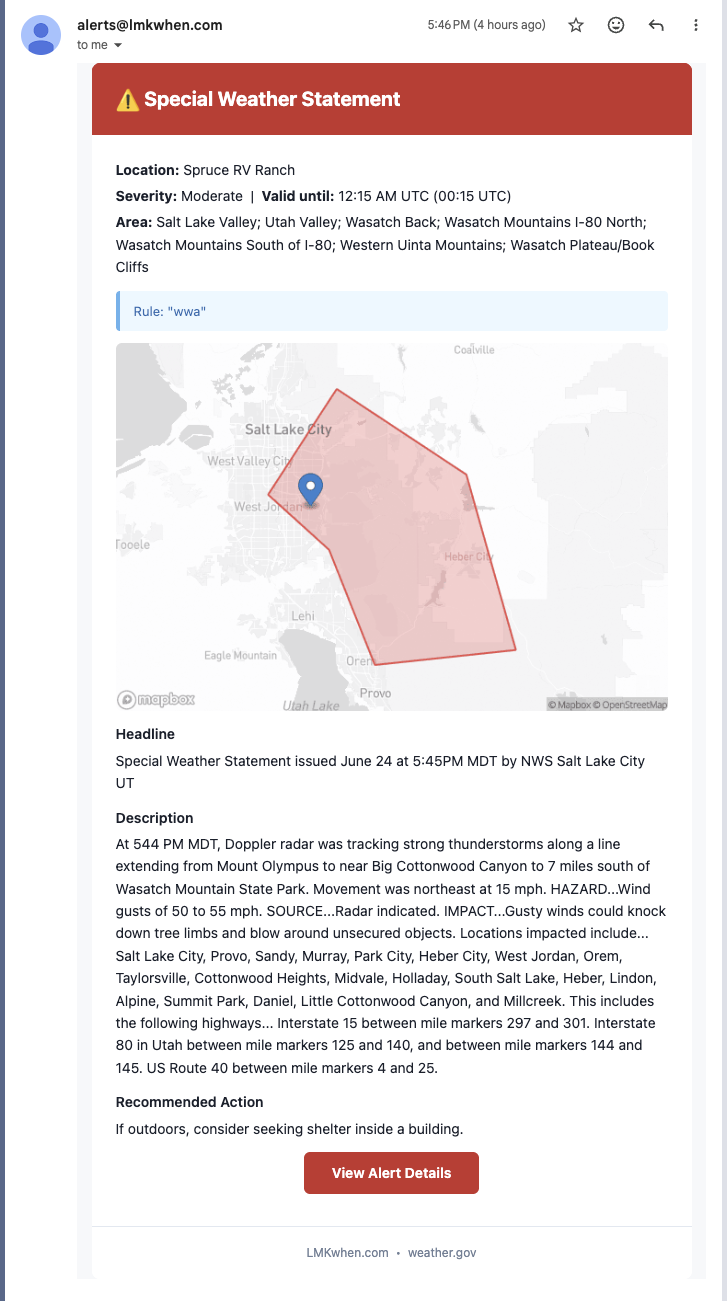
Every alert now comes with a map. Your email and Slack notifications show the hazard area — the warning polygon or the forecast outlook — with a pin on the exact property it affects, so you can tell at a glance whether the threat is right over your location or just nearby.

For Storm Prediction Center outlooks the map draws the full risk picture: each category — Marginal, Slight, Enhanced, and up — in its own color, with the band over your location highlighted, so a "Slight Risk" alert actually looks like the day's outlook instead of a single shape. And when you tap the link in a text message it now unfurls as a rich preview on your phone — the map and a one-line summary — before you even open it.

A severe weather alert email showing a map of the warning area with a pin on the affected property